Flowchart Creator Documentation
Learn how to create professional flowcharts, diagrams, and process maps with our intuitive flowchart creator tool.
Key Features
Everything you need to create professional flowcharts
Multiple Shape Types
Create flowcharts with various shapes including rectangles, circles, diamonds, and more.
Intuitive Connections
Connect shapes with customizable arrows to represent process flow and relationships.
Text Editing
Double-click any shape to add or edit text labels with an intuitive interface.
Export Options
Save your flowcharts as PNG images or export them for sharing with others.
Getting Started
Creating Shapes
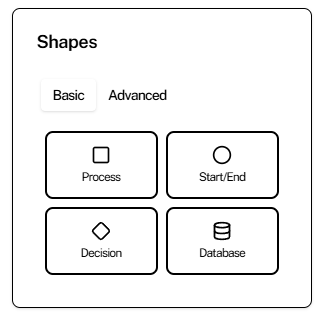
Drag shapes from the left panel onto the canvas. You can choose from basic shapes like rectangles, circles, and diamonds, or advanced shapes like clouds and databases.
Connecting Shapes
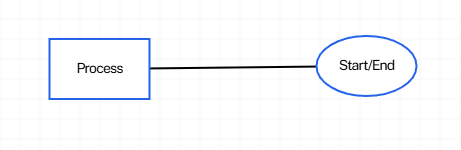
Click the "Connect Shapes" button, then click on a source shape followed by a target shape. This creates an arrow connecting the two shapes. You can customize the connection color.
Adding Text
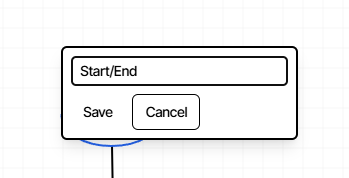
Double-click on any shape to add or edit its text label. Press Enter to save or Escape to cancel.
Moving Elements
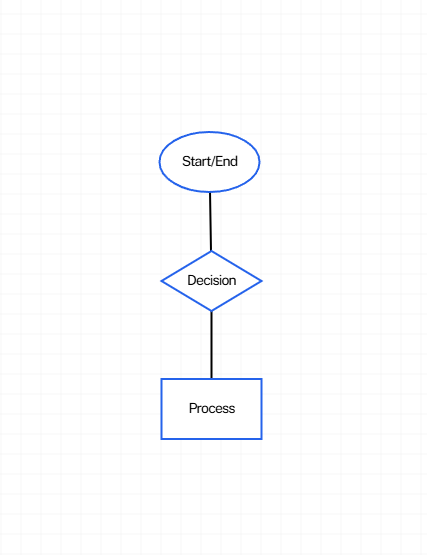
Click and drag any shape to reposition it on the canvas. Connections will automatically update to follow the shapes.
Exporting Your Flowchart
Click the "Save as PNG" button to download your flowchart as an image file that you can share or include in documents.
Video tutorial coming soon!
We're currently working on comprehensive video guides.
Simple Process Flow
Basic linear process with decision point
System Architecture
Cloud-based application architecture
Decision Tree
Complex decision making flowchart
Data Flow Diagram
Visualizing data movement in a system
Code Examples
For Developers
Programmatically create and manipulate flowcharts
// Add a new shape to the canvas
const newElement = {
  type: 'rectangle',  // rectangle, circle, diamond, etc.
  x: 100,            // x position
  y: 100,            // y position
  width: 100,        // width
  height: 60,        // height
  text: 'Process',   // label
  id: 'element-' + Date.now()
};

elements = [...elements, newElement];
This code creates a new rectangle shape on the canvas. You can modify the type, position, size, and text to create different shapes.
// Create a connection between two shapes
connections.push({
  start: sourceShape.id,
  end: targetShape.id,
  type: 'straight',
  color: '#2563eb'  // blue
});
This code creates a connection between two shapes. You can customize the connection type and color.
Tips & Best Practices
Start with the End in Mind
Before creating your flowchart, identify the start and end points of your process. This helps maintain focus and clarity.
Use Consistent Shapes
Maintain consistency in your diagram by using the same shape for similar steps or processes. This improves readability.
Keep Text Concise
Use short, clear phrases in your shapes. Aim for 1-5 words that capture the essence of each step.
Organize Spatially
Arrange your flowchart elements with enough space between them. Group related elements together for better organization.
Frequently Asked Questions
Keyboard Shortcuts
| Action | Shortcut |
|---|---|
| Undo | Ctrl + Z |
| Save as PNG | Ctrl + S |
| Edit Text | Double-click on shape |
| Cancel Text Editing | Esc |
| Save Text Edits | Enter |
Ready to create your flowchart?
Start designing professional diagrams in minutes.
Have questions or need help? Contact our support team at support@marshalmuse.com